

Set your password
When you’re given access to a project, you get an email invitation with a link to set your password. Open it, choose a password of at least 8 characters, and sign in. The link works once and is valid for a limited time; the email says how long. If it ran out, use Forgot your password? on the sign-in page, or ask your project owner to send you a new invitation.Sign in
1
Open the console
Go to the console address in your welcome email, and bookmark it.
2
Sign in
Enter your email address and your password. Your email is also your sign-in name.
3
Enter your code, if you use two-factor sign-in
If you’ve turned on two-factor sign-in, the console then asks for the 6-digit code from your authenticator app. Enter the current code and click Verify.
If you can’t sign in
- “Incorrect email or password.” Check both and try again. After several failed attempts, sign-in for the account is paused for 15 minutes, and the message is the same whether the password was wrong or sign-in is paused. Wait, then try again, or use Forgot your password?.
- “Too many failed sign-in attempts from your network.” The message says how many minutes to wait before trying again.
- “That code didn’t work.” Enter the code your authenticator app shows now; each code changes every 30 seconds. If codes keep failing, check that your phone’s clock is set automatically.
Forgot your password?
Click Forgot your password? on the sign-in page and enter the email you sign in with. If an account exists for it, you get a link to set a new password. Use it soon: it’s valid for a limited time. To change a password you know, open your Account page from the menu at the bottom of the sidebar. See Account.Two-factor sign-in
Two-factor sign-in protects your account with a code from an authenticator app on your phone, as well as your password. It’s off until you turn it on, and each person turns it on for their own account. We recommend it.1
Open your account
Open the menu at the bottom of the sidebar and choose your account. Under Security, find Two-factor sign-in and click Turn on.
2
Add Infinite Compute to your authenticator app
Open an authenticator app on your phone, for example Google Authenticator, Microsoft Authenticator or 1Password. Add an account and enter the setup key the console shows. If you’re using the console on your phone, the link under the key opens it in your authenticator app.
3
Confirm with a code
Enter the 6-digit code the app shows for Infinite Compute, and click Turn on.
What is a project?
A project is a shared workspace for a team. Everything you create (servers, volumes, model deployments) belongs to a project, and the server types you can launch are the ones assigned to it. Members of a project can see its servers, so a team can share work and hand it over. Each person in a project has a role, shown on your Account page:Switch project
If you belong to more than one project, click the project name at the top of the sidebar and choose another. The console updates to show that project’s servers, storage, models and usage.Manage your team (owners)
If you’re a project’s owner, the sidebar has a Team page listing everyone in the project, their role and when they last signed in.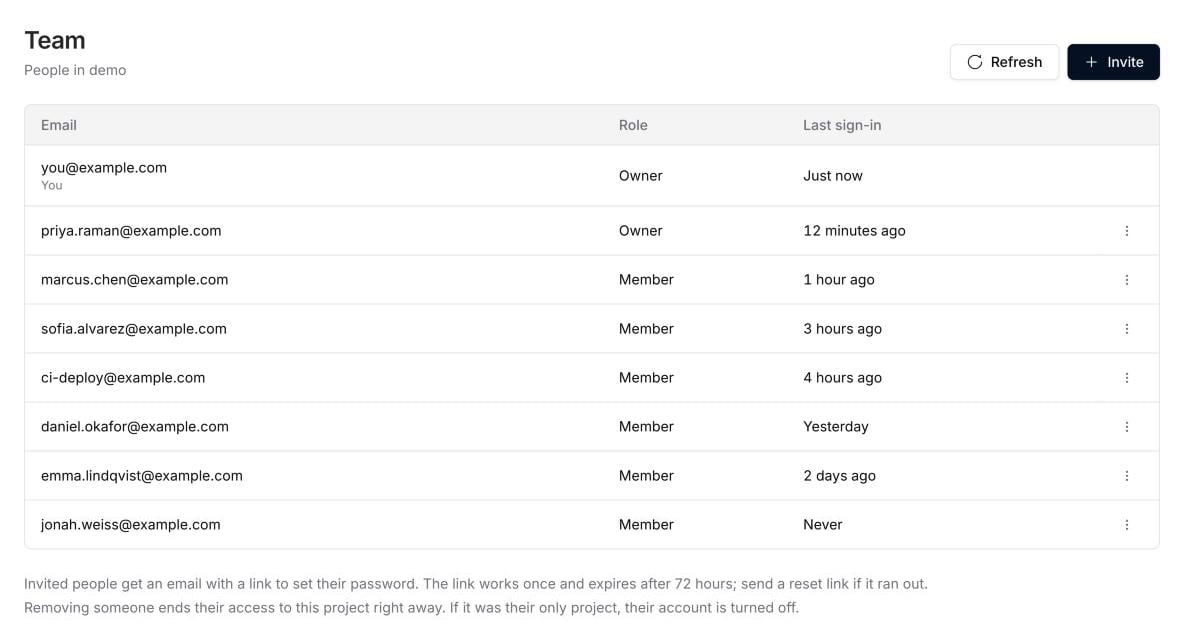
- Invite someone: click Invite and enter their email. They join the project as a member and get an email to set their password.
- Send a reset link: in a person’s ⋮ menu, choose Send reset link if they can’t sign in.
- Remove someone: in a person’s ⋮ menu, choose Remove. Their console access to the project ends right away. If it was their only project, their account is turned off. If they could connect to any of the project’s servers over SSH, remove their public key from
~/.ssh/authorized_keyson those servers.
Related
SSH keys and connecting
Add a key, turn on SSH and connect.
Console overview
What each section of the console is for.