

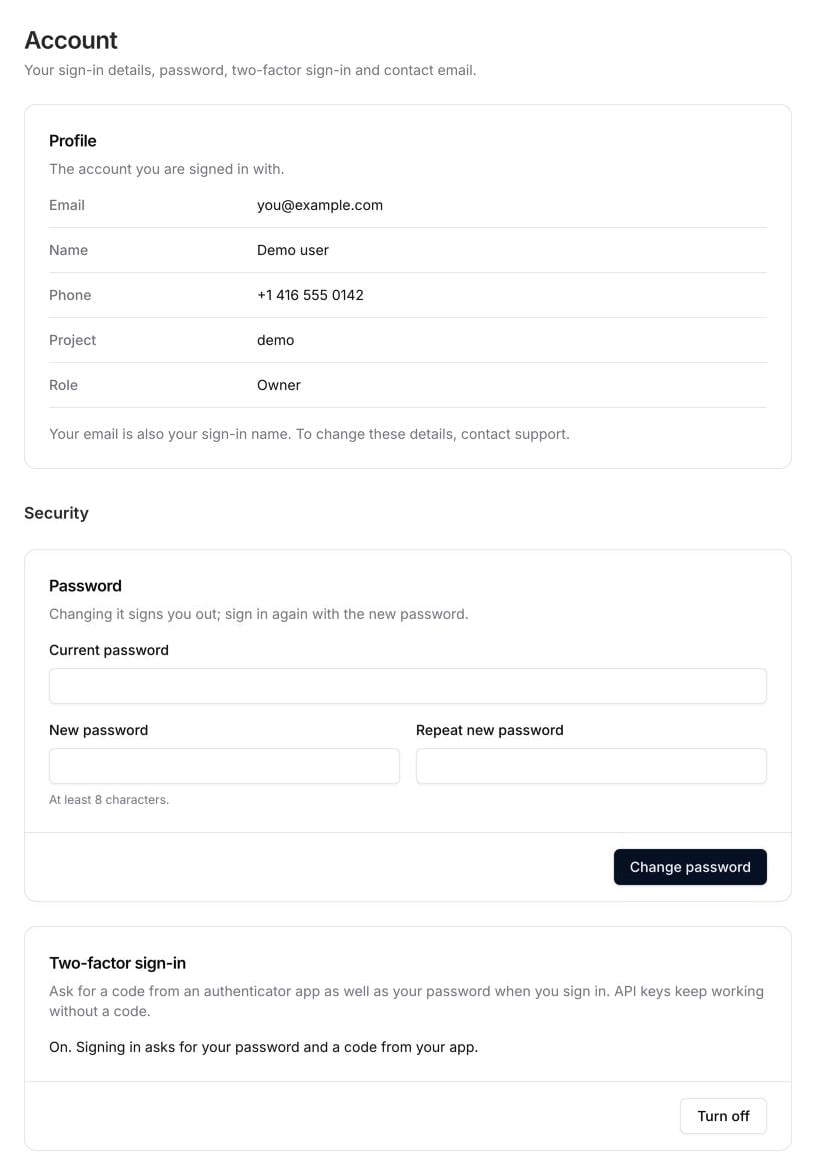
Profile
Security
Password
Enter your current password, then the new one twice, and click Change password. The new password must be at least 8 characters. Changing it signs you out; sign in again with the new password.Two-factor sign-in
Shows whether signing in asks for a code from an authenticator app as well as your password. Click Turn on to set it up, or Turn off (with a current code) to stop using it. Step-by-step: Two-factor sign-in. API keys keep working without a code when two-factor sign-in is on.API keys
API keys in the same menu is where you create and revoke keys for the Infinite Compute API. Members see their own keys; owners see every key in the project. See API keys.Forgot your password, or need someone added?
Use Forgot your password? on the sign-in page to get a link to set a new one. Your project owner invites new people from the Team page. See Sign in and switch project.Related
Sign in and switch project
Sign in and choose the project you work in.
Getting help
Who to contact and what to include.