

Volumes
Storage → Volumes lists your project’s volumes, with their status, size, location and the server each one is attached to. The quota line at the top shows how many volumes and how much space your project has left.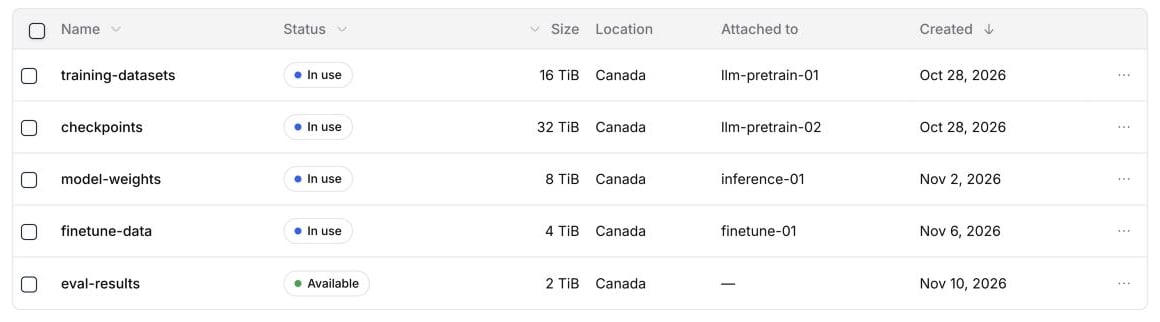
What you can do
The first time you use a new volume, format and mount it on the server. Where your data lives has the exact commands.
A volume can only be attached to servers in the same location as the volume, and the form only offers combinations that work.
Why use a volume
- Your work survives deleting a server, so you can delete servers freely and free up GPUs.
- You can move your data to a fresh server, for example after changing images.
- You can size storage to your dataset instead of to the server.
Volume snapshots
A volume snapshot is a point-in-time copy of a volume. Take one before a risky change, such as a big data migration, so you can go back. Storage → Volume Snapshots lists them with their size, source volume and creation time. The quota line shows how many you have and how much space volumes, system disks and snapshots use together. Create a snapshot from a volume’s row menu (Snapshot and copy → Create Volume Snapshot). To get the data back, open the snapshot’s row menu on Storage → Volume Snapshots and choose Create Volume: you get a new volume with the snapshot’s contents, and the original volume isn’t changed.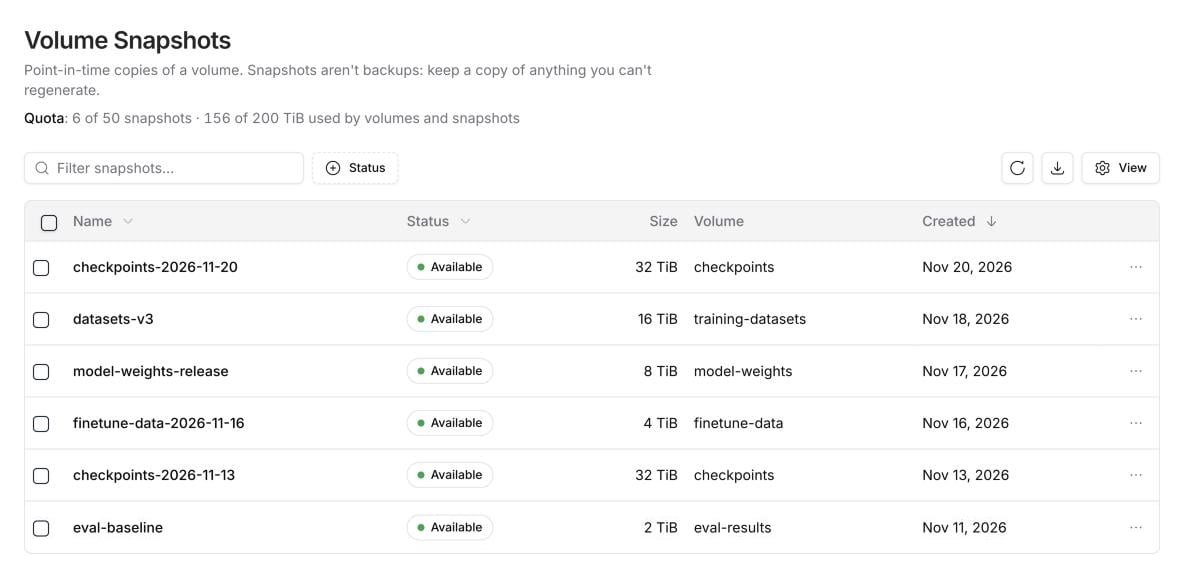
Volume backups
A volume backup is a copy of a volume that you take yourself. Create one from a volume’s row menu with Create Backup (under Snapshot and copy), choosing a full or incremental Backup Mode. The volume can stay attached while you do; pause writing to it for a consistent copy. Storage → Volume Backups lists your backups with their source volume, backup mode, size, status and creation time. Each volume’s page also has a Backups tab. To get the data back, choose Restore to New Volume in a backup’s row menu once its status is Available. The new volume is created in the location where the backup was made, and the original volume isn’t changed. If the option doesn’t appear for an available backup, contact support to restore it. The nightly backups Infinite Compute takes of your disks and volumes, where backups are available, aren’t listed here. To restore one, contact support. See Where your data lives.Quotas
Each project has limits on the number of volumes and snapshots and on their total storage, and separate limits on the number and total size of backups. The current limits are shown on each page and in the Create Backup form. To raise them, contact support.Related
Where your data lives
What is kept, what is lost, and how to save results.
Servers
Launch, connect, park and delete servers.