

Explore
Models → Explore shows open models from Hugging Face, checked against the GPUs your project has.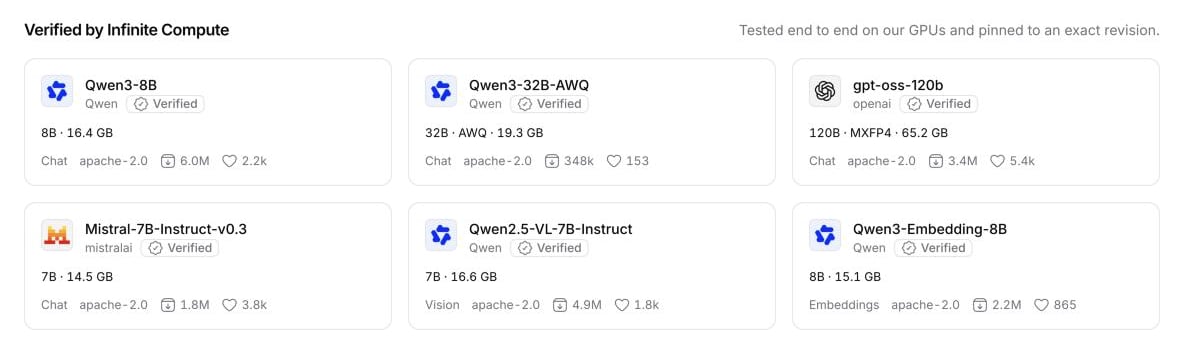
Finding a model
- Your GPUs (under the title) shows the GPUs your project can deploy to.
- Task filters: Chat, Vision or Embeddings.
- Fits my GPUs is on by default and shows only models that can run on your project’s GPUs. Turn it off to include models that need a bigger GPU or aren’t supported.
- Model size, License and Provider filters narrow the list further, and Sort orders it.
- Search by name.
Verified models
Models in Verified by Infinite Compute have been tested end to end on our GPUs and are pinned to an exact revision, so they’re the most likely to deploy without changes. Start with one of these. Each card shows the model’s size, task, license, and Hugging Face downloads and likes. The other models listed come from well-known providers on Hugging Face. They’re marked Untested: they fit your GPUs, but we haven’t tested them, so they may not deploy.Deploy a model
Open a model and click Deploy, or use Deploy a model on Home or on Deployments. Step-by-step: Deploy a model.Deployments
Models → Deployments lists the models running in your project.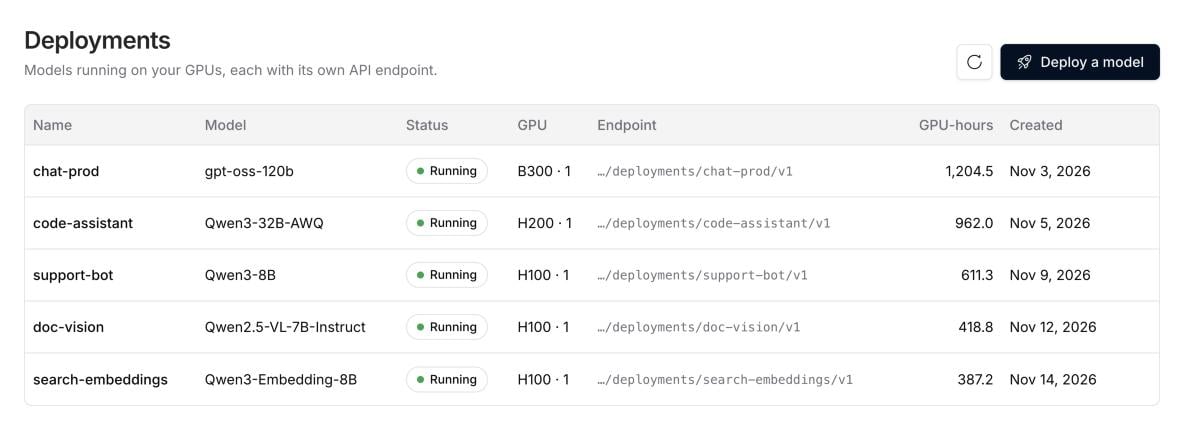
Open a deployment to see its endpoint and ready-to-copy code samples. The deployment’s API key is shown only once, when you deploy it: copy it then, and treat it like a password.
A deployment runs on a server on one of your project’s GPUs and is billed in GPU-hours, like a server. A stopped deployment still holds its GPU. To free the GPU, choose Open server in the deployment’s menu and park the server, or delete the deployment.
Endpoints use HTTPS and work from anywhere, but they only answer requests that carry the deployment’s API key.
Related
Deploy a model
Serve an open model behind an OpenAI-compatible API.
Usage
GPU-hours by day and by server.
Billing
Balance, charges, invoices and statements.
Networking
Networks, topology and security groups.